
Quick Takeaways
- Third-party scripts are bits of code your site loads from other companies’ servers: analytics, ad pixels, chat widgets, booking tools, video embeds, and more.
- PageSpeed Insights flags them with warnings like “Reduce the impact of third-party code” or “Third-party code blocked the main thread,” because they can delay loading and make the page slow to respond.
- They hit phones hardest, since phones run JavaScript more slowly than computers.
- The biggest win is usually removing scripts you no longer use. Then delay, defer, or limit the ones you keep.
- On WordPress, a caching or performance plugin can delay most scripts until the visitor interacts with the page.
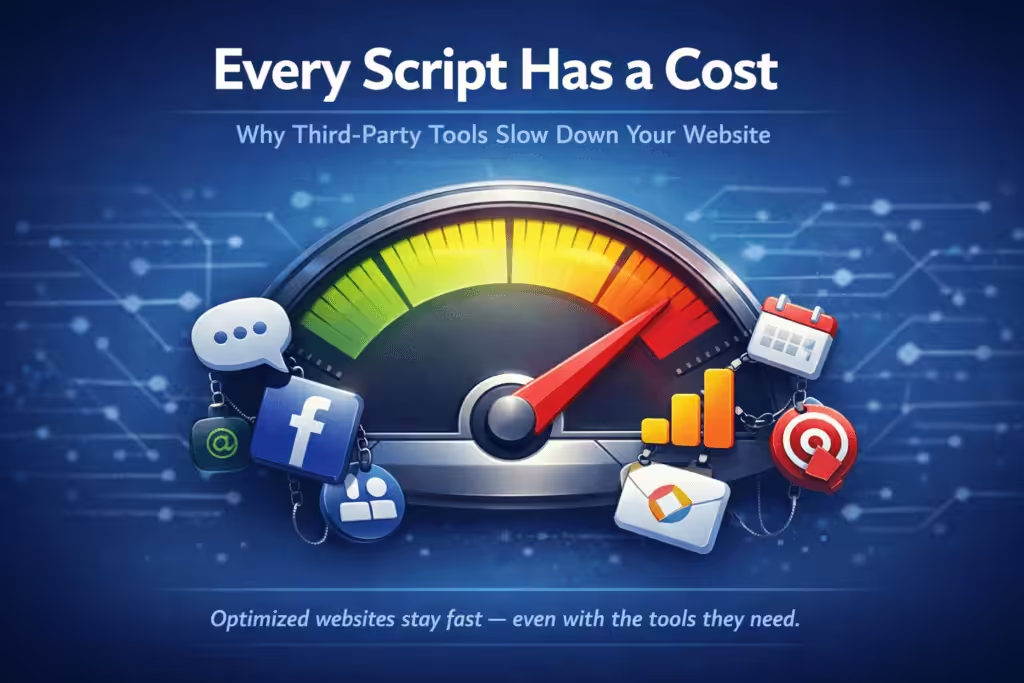
To reduce the impact of third-party code, remove scripts you don’t need, delay the ones you keep until after the page loads, and only load each tool on the pages that use it. Third-party scripts, like Google Analytics, Facebook Pixel, chat widgets, and YouTube embeds, load from outside servers and run on your visitors’ devices. Too many of them slow the page down and make it feel unresponsive, especially on phones.
Below is what third-party scripts are, how to see which ones are slowing your site, and the fixes in order of impact, including how to handle them on a WordPress site.
What Are Third-Party Scripts?
A third-party script is code hosted by another company that runs on your website. You add it when you install a tool: paste in a tracking code, add a plugin, or embed a widget. Every time someone visits your page, their browser has to connect to that company’s server, download the code, and run it.
Common examples on small business websites:
| Type | Examples |
|---|---|
| Analytics and tag managers | Google Analytics, Google Tag Manager, Microsoft Clarity |
| Advertising pixels | Meta (Facebook) Pixel, Google Ads, LinkedIn Insight Tag, TikTok Pixel |
| Chat and support | Intercom, Drift, Tidio, Tawk.to, Facebook Messenger chat |
| Video and social embeds | YouTube and Vimeo players, Instagram feeds, Facebook page widgets |
| Booking and forms | Calendly, scheduling widgets, embedded third-party forms |
| Reviews and heatmaps | Review widgets, Hotjar, other session recording tools |
| Other | Cookie banners, Google Maps embeds, reCAPTCHA, popup and email tools |
Why Third-Party Scripts Slow Down Your Website
- Extra connections. Each outside server needs its own connection before anything downloads, and you don’t control how fast those servers respond.
- They can block the page. A script loaded the old-fashioned way in the page’s header makes the browser stop and wait before it shows your content.
- They tie up the browser. While a script is running, the browser can’t respond to taps and clicks. That’s what PageSpeed means by “blocked the main thread.”
- They move things around. Chat bubbles, ads, and embeds that appear after the page loads can push content down, which feels jumpy.
- They load more code. Many tools pull in additional scripts of their own, so one embed can turn into several.
Phones feel this most. A typical phone runs JavaScript several times slower than a laptop, and mobile connections vary, so a script that barely registers on your office computer can make the site sluggish for a customer on their phone. See why mobile website speed matters.
How Third-Party Code Affects Core Web Vitals
| Metric | How third-party scripts affect it |
|---|---|
| Largest Contentful Paint (LCP) | Render-blocking scripts delay when the main content appears |
| Interaction to Next Paint (INP) | Heavy scripts keep the browser busy, so taps and clicks respond late |
| Cumulative Layout Shift (CLS) | Widgets and embeds that appear late push content around |
These are the same metrics Google uses to judge page experience. See how to improve Core Web Vitals for the full picture.
How to Find Which Scripts Are Slowing Your Site
1. Run PageSpeed Insights
Test your homepage and your main service page at PageSpeed Insights, or use our free website speed test. In PageSpeed, look for third-party warnings. Depending on the version of the report, they appear as “Reduce the impact of third-party code,” “Third-party code blocked the main thread,” or a “3rd parties” section. Each one lists the outside companies loading code on your page and how much time they take.
2. Check the browser’s Network panel
In Chrome, right-click the page, choose Inspect, and open the Network tab. Reload the page and look at the Domain column. Anything that isn’t your own domain is a third party. This shows you every request, its size, and how long it took.
3. List what’s installed
Check your plugins, your theme’s “header and footer scripts” setting, and Google Tag Manager if you use it. Write down every tool, what it’s for, and who uses the data. This list is usually where the forgotten scripts turn up.
How to Reduce the Impact of Third-Party Code
Work through these in order. The first two usually make the biggest difference.
1. Remove scripts you don’t use
Old ad pixels from a campaign that ended, a heatmap from a one-time test, a chat tool nobody answers, analytics you replaced but never removed. If nobody looks at the data or uses the tool, take the script out completely. This is the only fix that removes the cost entirely.
2. Load scripts only where they’re needed
A booking widget only needs to load on the booking page. A map only needs to load on the contact page. Most performance plugins and Google Tag Manager let you limit a script to specific pages. On WordPress, a plugin like Asset CleanUp lets you turn off a plugin’s scripts and styles on pages that don’t use them, so your booking or form plugin only loads where it’s actually needed.
3. Use async or defer
Adding async or defer to a script tag tells the browser not to wait for it before showing the page. Most modern tools load this way by default, but older code pasted into a theme header often doesn’t.
4. Delay scripts until the visitor interacts
Many tools don’t need to run the moment the page opens. A “delay JavaScript” setting holds scripts like chat widgets, pixels, and heatmaps until the visitor scrolls, taps, or moves the mouse. On WordPress, plugins like FlyingPress, WP Rocket, and Perfmatters offer this. Test your forms, chat, and tracking afterward, since some scripts need to be excluded.
5. Replace heavy embeds with lightweight previews
A YouTube embed loads a lot of code even if nobody presses play. A “facade” shows a thumbnail with a play button and only loads the real player when clicked. The same idea works for chat widgets and maps: show a simple button or image first.
6. Consolidate where you can
If several tools do the same job, keep one. Loading tracking through Google Tag Manager also makes it easier to see and control everything in one place, though Tag Manager itself adds a script, so it only helps if you keep it tidy.
Should You Remove Google Analytics or Your Facebook Pixel?
Not if you use them. Analytics and ad tracking are worth their cost when someone actually looks at the reports or runs ads. The goal isn’t zero scripts. It’s that every script on the site earns its place. Keep the tools you use, load them efficiently, and remove the rest.
Why Scripts Pile Up Over Time
No one adds ten scripts at once. A pixel goes in for an ad campaign, a chat widget for a busy season, a heatmap to test a page, and none of them are taken out later. That gradual buildup is one of the main reasons websites slow down after launch. Reviewing your scripts every few months, and whenever you stop using a tool, keeps it from happening.
Frequently Asked Questions
What does “Reduce the impact of third-party code” mean?
It’s a PageSpeed Insights warning that outside scripts on your page, like analytics, pixels, or chat widgets, are using enough time to slow the page down. The report lists each company and how long its code ran.
What does “Third-party code blocked the main thread” mean?
It means outside scripts kept the browser busy for that amount of time, so it couldn’t respond to the visitor or finish showing the page. Removing or delaying those scripts reduces the number.
Do third-party scripts affect SEO?
Indirectly. They can hurt Core Web Vitals, which are part of how Google evaluates page experience, and a slow site loses visitors before they contact you.
How many third-party scripts is too many?
There’s no set number. A handful of well-loaded scripts is usually fine. Focus on what PageSpeed shows as taking the most time, and on anything you no longer use.
How do I remove third-party scripts from WordPress?
Deactivate the plugin that adds the tool, remove the code from your theme’s header and footer settings, or delete the tag in Google Tag Manager. Then clear your cache and run PageSpeed again to confirm it’s gone.
For everything you need to know about website performance, explore the full website performance for small business guide, or browse all topics at Cindaro Resources. Script reviews are part of what website management includes.
Cindaro builds and manages websites for small businesses as an ongoing service, so scripts are reviewed and loaded efficiently as part of regular performance care, not left to pile up. See how it works or view our pricing.